
Home Page for Team Members
The Home page is the starting point for your customer discovery workflow in Innovation Within. It brings together the main areas of your workspace, including your Canvas, interview templates, calendar and meeting assistant, interviews, and related workspace tools.
From this page, you can quickly understand the current state of your team’s work, continue building your Canvas, generate interview templates, review upcoming meetings, and access interviews without moving through each feature separately.
The Home page reflects the currently selected organization and team. If you switch to a different team, the content on the Home page updates to show that team’s Canvas, interviews, templates, meetings, and related workspace data.
Step 1: The Canvas
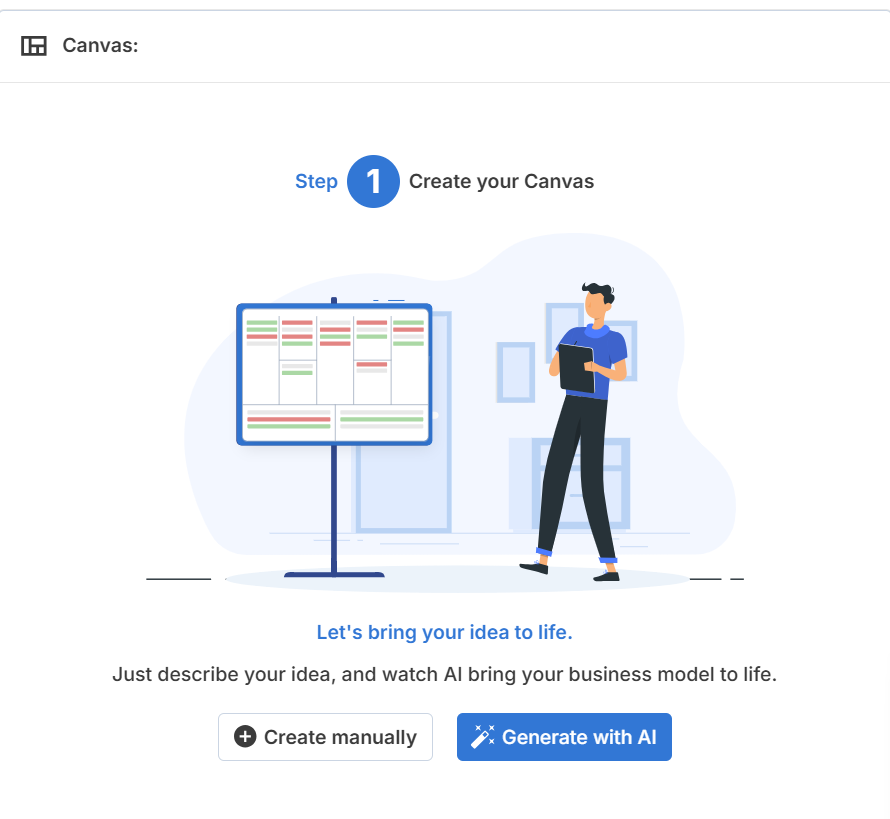
The Canvas section gives you a high-level view of your team’s current Canvas progress.
You can use this section to:
- View the total number of hypotheses
- See how many hypotheses are validated, invalidated, or unresolved
- Open the Canvas to review or edit hypotheses
- Generate or improve a Canvas using AI
The chart helps you quickly understand how much of your Canvas has been tested and how much still needs evidence.
To work on your Canvas, open the Canvas section or click Generate with AI if you want the platform to help create or expand your hypotheses.
Step 2: Interview Templates
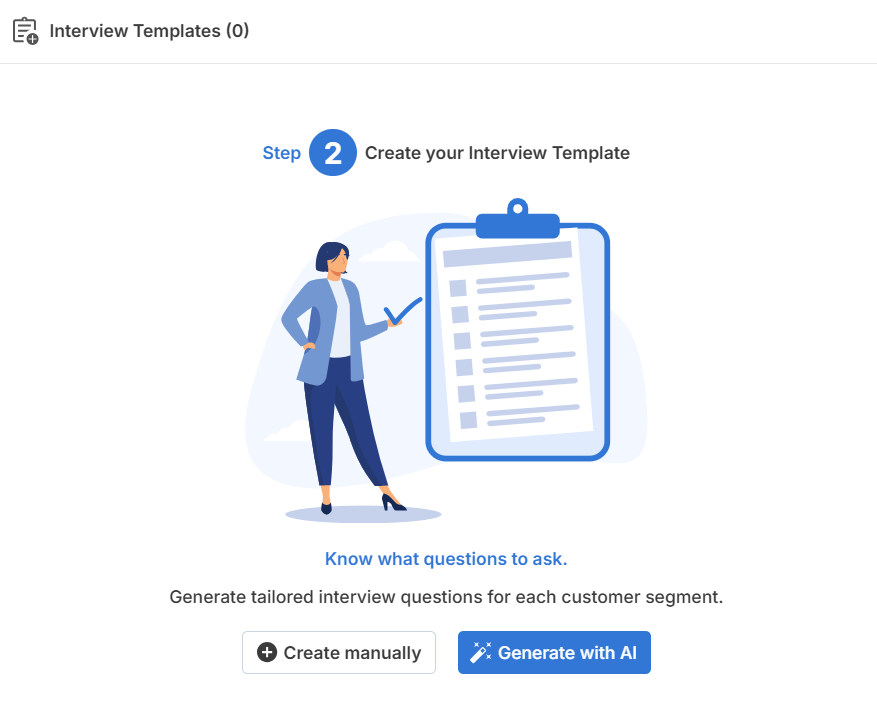
The Interview Templates section shows the templates available for your current team.
Interview templates help you prepare structured questions for customer discovery conversations. You can create templates manually or use AI to generate templates based on your Canvas and customer segments.
From this section, you can:
- View existing interview templates
- Open a template to review or edit it
- Generate a new interview template with AI
Templates help your team conduct more consistent interviews and make sure questions are connected to the assumptions you are trying to test.
Step 3: Calendar & Meeting Assistant
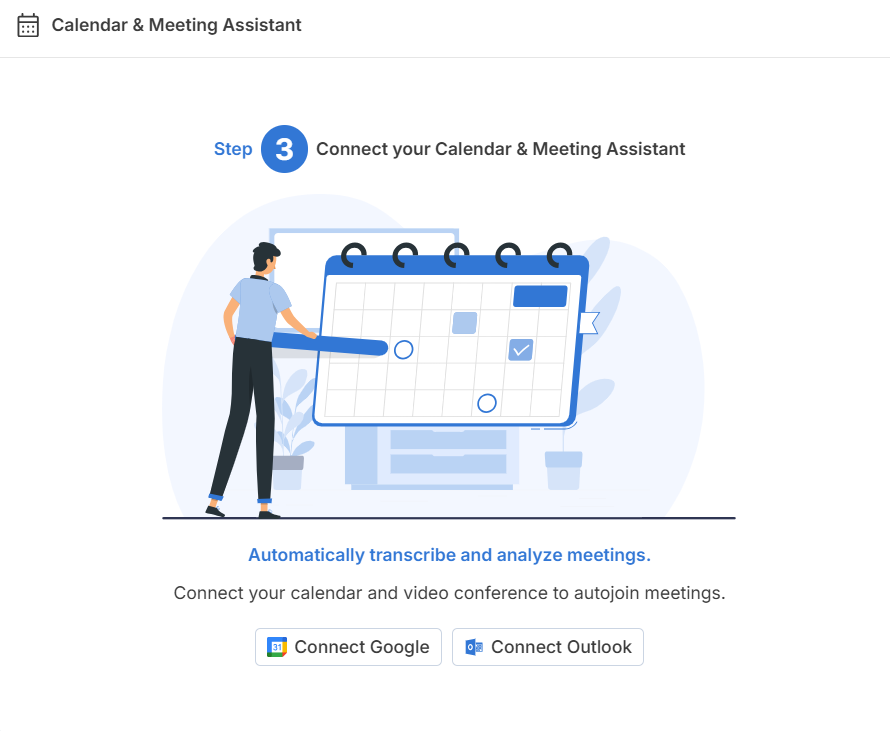
The Calendar & Meeting Assistant section helps you manage upcoming meetings connected to your customer discovery work.
After connecting your calendar, this section can show upcoming meetings for the selected team. You can use the Meeting Assistant to help record, transcribe, and analyze supported meetings.
From this section, you can:
- View upcoming calendar meetings
- Use meeting title keywords to identify meetings the assistant should join
- Manually enable the assistant for selected meetings
- Join the assistant using a meeting link
This helps reduce manual uploads and keeps meeting recordings connected to your discovery workflow.
Step 4: Interviews
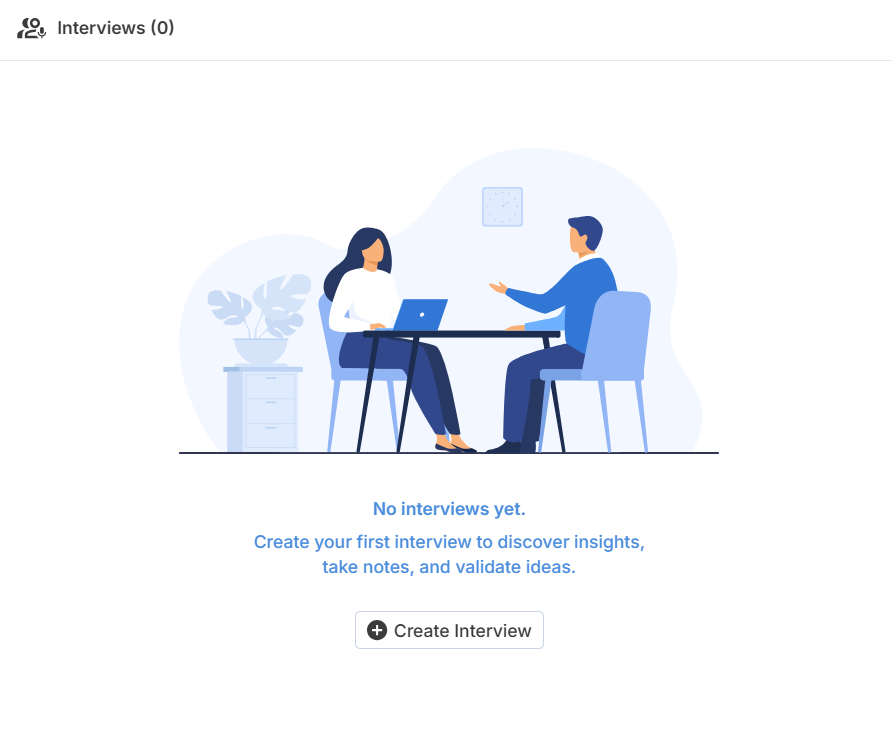
The Interviews section shows interviews connected to the selected team.
Use this section to quickly access recent or available interviews. For deeper management, open the full Interviews page from the left sidebar.
From the Interviews section or the main Interviews page, you can:
- Review interview records
- Open transcripts, notes, insights, and analysis
- Upload or create interviews
- Track interview status and analysis progress
This section helps you continue from customer conversations into structured insights and evidence.
Understanding the Left Sidebar
The left sidebar is the main navigation area in Innovation Within. It helps you move between product areas, switch teams, and access workspace-level tools.
The sidebar reflects the organization and team you are currently working in, so the content you see across Home, Canvas, Interviews, Insights, and other pages is connected to that selected workspace.
Organization and Account Area
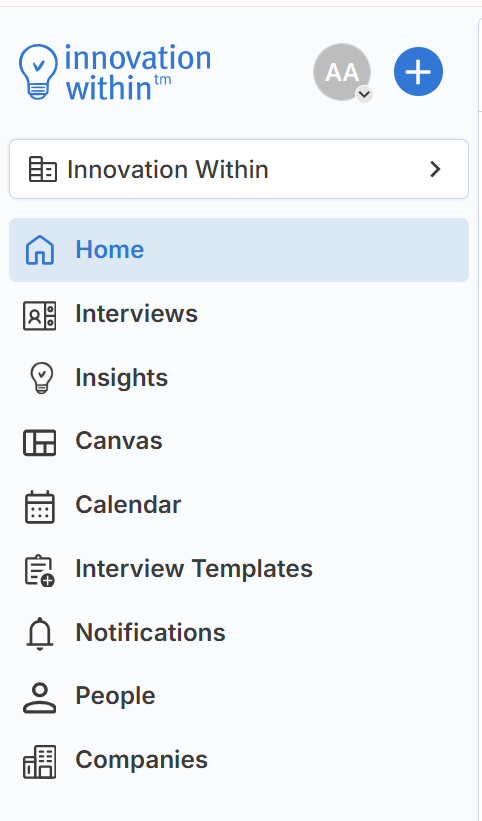
At the top of the sidebar, you will see the Innovation Within logo, your avatar, and the quick-create + button.
Your current organization appears near the top of the sidebar, directly below the logo area. Click the organization name to open the organization page, where you can view associated folders, cohorts, projects, and teams.
Use this area to confirm which organization you are currently working in before reviewing or updating team content.
Quick-Create Menu
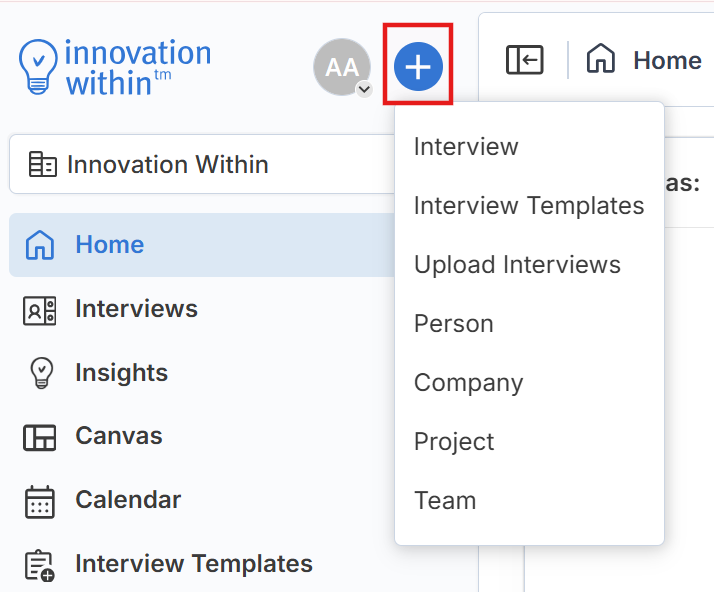
The + button near the top of the sidebar opens the quick-create menu.
Use this menu to quickly create or add common workspace items without first navigating to each individual page.
Available options may include:
- Interview
- Interview Templates
- Upload Interviews
- Person
- Company
- Team
This is useful when you want to quickly add a new interview, template, person, company, or team from anywhere in the platform.
Main Navigation
The main navigation gives you access to the core areas of the platform.
Home
The starting point for your workspace. The Home page gives you a quick overview of your Canvas, interview templates, calendar and meeting assistant, and interviews.
Interviews
View and manage interviews in one place, including uploaded recordings, meeting assistant recordings, simulated interviews, transcripts, notes, insights, and analysis.
Insights
Review insights generated from interviews and notes. Insights can be filtered, tagged, prioritized, and linked back to Canvas hypotheses.
Canvas
Build and manage your Canvas, capture hypotheses, review evidence, and track validation progress.
Calendar
Connect your calendar, review upcoming meetings, and manage how the Meeting Assistant joins or records meetings.
Interview Templates
Create and manage interview question templates manually or with AI.
Notifications
Open the Notifications area to review updates related to your work.
This area includes two tabs:
- Notifications — Shows user-facing updates, such as comments, feedback, and other relevant alerts.
- Workspace Activity — Shows team-level background activity, such as media processing, transcript analysis, canvas generation, interview template generation, synthetic interview generation, and exports.
People
Manage people connected to your interviews, meetings, and customer discovery work. People records can include contact details, company information, social links, and meeting history.
Companies
Manage companies connected to your people, interviews, and discovery activities. Company records can include domains, size, social links, associated people, and meetings conducted.
Teams/Projects
The Teams/projects section shows the teams/projects you have access to within the selected organization.
Selecting a team switches your workspace context. After switching teams, the Home page and other platform areas update to show that team’s:
- Canvas
- Interviews
- Insights
- Interview templates
- Calendar and meeting data
- People and company records, where applicable
Use the team list when you need to move between different team workspaces.
Key Takeaway
The Home page gives you a central starting point for your team’s customer discovery work.
Use it to quickly access your Canvas, interview templates, calendar meetings, and interviews. Use the left sidebar to move between major product areas, switch teams, manage People and Companies, and confirm that you are working in the correct organization and workspace.