
Explore AI-Powered Features in Innovation Within
Innovation Within leverages AI to enhance your customer discovery process — helping you move faster from assumptions to validated insights. Whether you're just getting started or have already completed work manually, AI supports you at every stage of your workflow.
Using AI on Existing Work
If you’ve already been using the platform without AI, you may already have:
- A Canvas with hypotheses
- Interview Templates
- Completed interviews
- Insights created manually
AI does not replace this work — it builds on it.
Instead of starting over, you can use AI to enhance, expand, and accelerate what you’ve already created.
Step 1: Enhance Your Existing Canvas
Start with your Canvas — this is where your assumptions live.
What to do:
- Go to Canvas from the left sidebar
- Open your existing Canvas
- Look for the magic wand icon (top right or inside sections)
- Click it
- Enter or refine your business idea
- Click Generate

What happens:
- AI suggests new hypotheses
- You can Accept or Reject each one
- Your existing Canvas stays — AI adds to it
👉 You are not replacing your work — you are expanding it
Step 2: Generate or Improve Interview Templates
Once your Canvas is ready, move to templates.
You have two places to generate templates:
Option 1: From the Home Page
- Go to Home
- Find the Interview Templates section
- Click Generate With AI
- AI will create templates based on your Canvas

Option 2: From the Interview Templates Page
- Go to Interview Templates from the sidebar
- Click Generate With AI or open a template
- Generate or refine questions

What this helps you do:
- Compare your manual questions with AI-generated ones
- Improve weak or incomplete questions
- Cover areas you may have missed
Step 3: Run AI Analysis on Your Existing Interviews
This is where most users miss the opportunity.
You do NOT need new interviews.
You can apply AI to interviews you already conducted.
What to do:
-
Go to Interviews
Select one or multiple interviews using checkboxes
You can:
- Select individual interviews
- Select all
- Use Shift + click to select a range
- Click Generate Analysis (top toolbar)

What happens:
AI will:
- Read the transcript
- Generate insights
- Create:
- Learning Brief
- Executive summary
- Explicit insights
- Implicit insights
- Thematic patterns
👉 This step turns past interviews into structured, usable data
Step 4: Re-Transcribe for Better Results (Optional)
If your interviews already have transcripts, you can improve them.
What to do:
- Go to Interviews
- Click the three dots (Actions menu) on an interview
- Click Re-Transcribe Media

What happens:
- Transcript is refreshed
- AI analysis is regenerated
- Insights may improve
⚠️ Note: Existing insights may change
Step 5: Try Simulated Interviews
Now you can go beyond real interviews.
Simulated interviews help you test and explore faster.
Option 1: From Home Page
- Go to Home
- Click an Interview Template
- Click Generate under simulated interview

Option 2: From Interview Templates Page
- Go to Interview Templates
- Find your template
- Click Generate Interview

What happens:
AI creates:
- A full transcript
- Insights
- Summary
- Linked hypotheses
Why this matters:
You can:
- Test your questions
- Explore new segments
- Compare with real interviews
What Actually Changes Now
Before AI:
- You wrote everything manually
- Analysis was slow
- Patterns were hard to see
Now with AI:
- Your Canvas becomes expandable
- Your templates become stronger
- Your past interviews become structured insights
- You can analyze multiple interviews instantly
Core AI Features
1. Generate an AI Canvas
Easily create or enhance your Canvas using AI.
You can initiate Canvas generation from two locations:
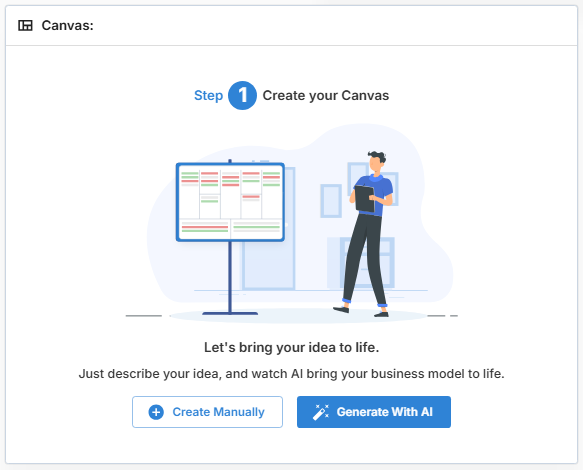
From the Home Page:
- Navigate to the Canvas section
- Click “Generate With AI”
- Enter a brief description of your idea (customer segments, problems, etc.)
- Click “Generate Canvas”
AI will populate your Canvas with relevant hypotheses.
From the Canvas Feature:
- Click the magic wand icon labeled “Generate Business Model with AI”
- This opens the AI Canvas editor
- Add your idea description
- Generate both Canvas and Interview Templates

2. Interview Template Generation
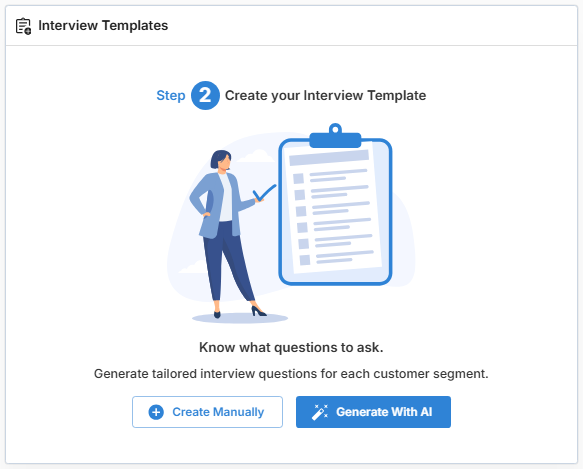
Turn your Customer Segments into practical interview templates. For each Customer Segment outlined in your Canvas, AI generates customized customer discovery questions. These questions help you validate your business model and kick start your interviews. Create or Access these templates from the Home page under the "Interview Templates" section or via the Interviews feature by clicking the “View Templates” button. Templates can be adjusted by team members as needed. To trigger the creation of interview templates you'll want to be on the Home page.


3. Interview Analysis
The AI Insights feature helps you quickly pinpoint actionable takeaways from customer interviews. By analyzing transcriptions, the AI reviews the entirety of the interview, streamlining early-stage analysis and saving you valuable time. This allows you to combine AI-generated analysis with your own observations for a thorough understanding of customer feedback.
Getting Started with AI Insights:
- Upload and Transcribe: Upload your interview audio or video files. AI-generated Insights will be available shortly after the transcription is processed.
- AI Analysis: Review the generated insights and choose to “Accept” or “Reject” them. You can also edit comments, tags, and links to hypotheses as needed.
- Re-transcribing for Insights: For interviews with existing transcriptions, use the "Re-Transcribe Media" option from the interview menu. This refreshes the transcription and generates new AI Insights. Be aware that existing Insights may be updated or replaced if the transcription text has been modified.

Utilise these AI-driven features to streamline your discovery process, uncover critical insights, and drive your innovation forward with greater ease.
4. Simulated Interviews
Simulated Interviews allow you to generate a structured customer interview using AI — without scheduling a live participant. This feature is designed to help you explore ideas, test assumptions, and refine your discovery approach quickly.
Using your existing Interview Template and Customer Segment context, AI generates a realistic, segment-specific conversation that mirrors how a real participant might respond.
Why Use Simulated Interviews?
Simulated Interviews help you:
- Test new hypotheses before conducting live interviews
- Evaluate the strength of your interview questions
- Explore additional customer segments quickly
- Identify potential blind spots in your assumptions
- Generate structured insights to compare with real interview findings
Each simulated interview includes:
- A complete transcript
- Executive summary
- Explicit insights (directly stated feedback)
- Implicit insights (underlying themes and signals)
- Meta-analysis
- Insights linked to your Canvas hypotheses
How to Create a Simulated Interview
There are two ways to generate a simulated interview in the platform.
Option 1: From the Home Page
- Go to your Home page.
- Click on the Interview Template you want to use.
- A pop-up window will open displaying the template.
- Click the Generate button under the “No simulated interview” section.
- The system will automatically create a simulated interview for you.

You can then review the transcript, executive summary, insights, and linked hypotheses just like you would with any interview.
Option 2: From the Interview Templates Page
- Go to Interview Templates from the left-side navigation panel.
- Locate the template you want to use.
- In the Simulated Interview column, click Generate Interview.
- The system will create a simulated interview based on that template.

Once generated, the simulated interview will appear in your Interviews list with its transcript and AI analysis
Simulated Interviews are a powerful way to accelerate early-stage discovery and sharpen your thinking before engaging with real customers.
Important: While simulated interviews provide structured insights, they should complement — not replace — conversations with real participants. Real-world validation remains essential for confident decision-making.
Key Takeaway
AI in Innovation Within is designed to support your entire workflow:
- Generate or enhance your Canvas
- Create structured interview templates
- Analyze interviews at scale
- Identify patterns and insights faster
Whether you start with AI or introduce it after manual work, AI helps you move from raw data to validated insights — with greater speed, clarity, and structure.